

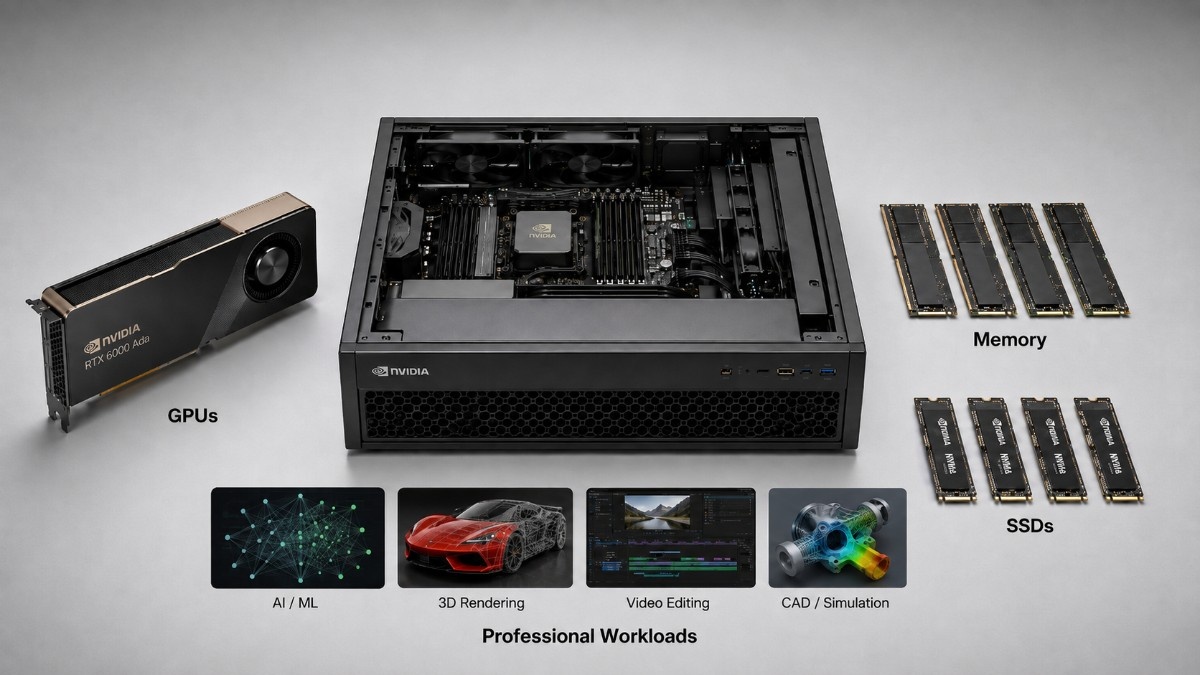
A professional workstation needs more than a powerful GPU. Its CPU, memory, SSDs, power supply, and cooling must work as one balanced platform.
This NVIDIA Workstation Build Guide covers CAD, rendering, simulation, and AI development. It compares key NVIDIA professional GPUs and explains when a workstation makes more sense than a server.
What Does a Complete NVIDIA Workstation Build Need?
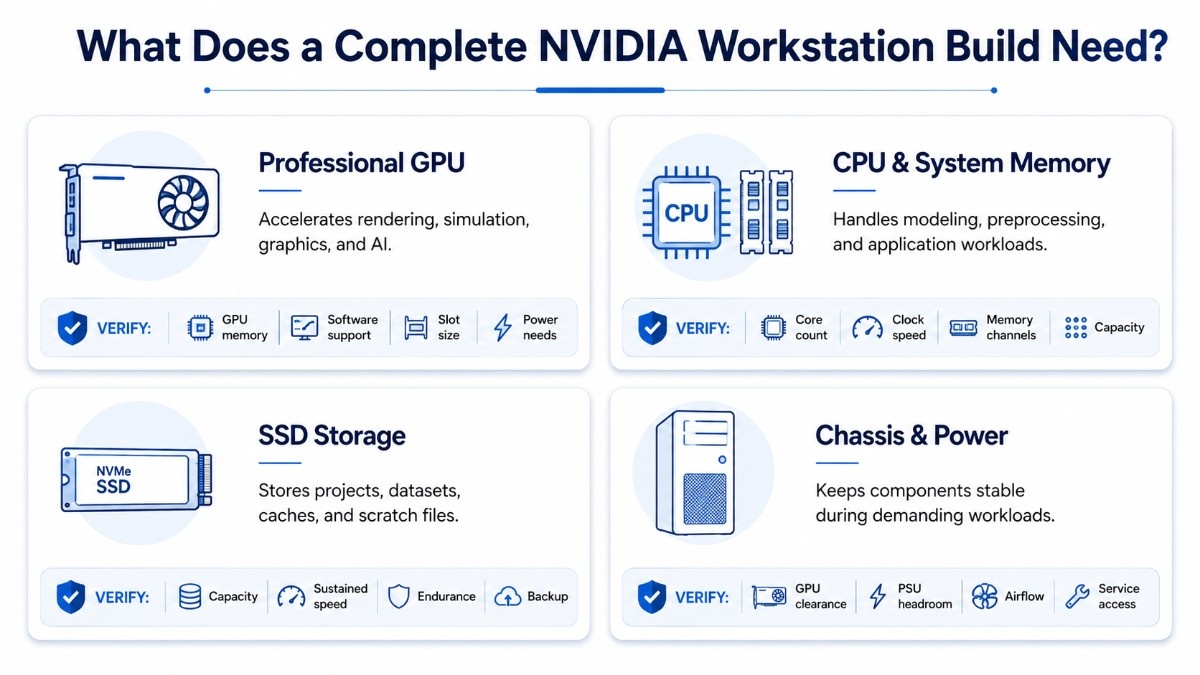
Start with file size, application type, display setup, AI model size, and daily usage.
The GPU is only one part of the build. A fast card can still perform poorly when the CPU delays data preparation, system memory runs short, the SSD cannot feed large files, or the chassis traps heat.
Teams planning a professional GPU deployment should check performance and physical fit. Card length, slot width, power connectors, motherboard spacing, and airflow can decide whether the configuration works.
| Workstation layer | Main role | What buyers should verify |
| Professional GPU | Accelerates graphics, rendering, simulation, and AI | GPU memory, software support, slot size, and power |
| CPU and system memory | Handles modeling, preprocessing, and application work | Core count, clock speed, memory channels, and capacity |
| SSD storage | Holds projects, datasets, caches, and scratch files | Capacity, sustained speed, endurance, and backup |
| Chassis and power | Keeps components stable under load | Card clearance, PSU headroom, airflow, and service access |
Which NVIDIA Professional GPU Should You Choose?
Choose the GPU by project size, software support, memory demand, and budget.
When Is RTX 6000 Ada or RTX A6000 the Best Fit?
The RTX 6000 Ada 48GB targets demanding rendering, visualization, simulation, and AI work. NVIDIA lists 48GB of GDDR6 ECC memory, PCIe Gen 4 x16, active cooling, a dual-slot design, and 300W maximum power use.
The RTX A6000 48GB also provides 48GB of GDDR6 ECC memory. It uses the older Ampere architecture, supports PCIe Gen 4 x16, and carries a 300W power rating.
RTX A6000 supports two-card NVLink, but buyers must confirm application support before planning a multi-GPU workflow. The RTX 6000 Ada review adds context for comparing these options.
When Should Buyers Choose RTX A5000 or RTX A4000?
The RTX A5000 24GB provides a balanced option for CAD, rendering, simulation, and moderate AI development. NVIDIA specifies 24GB of GDDR6 ECC memory, PCIe Gen 4 x16, a dual-slot design, and 230W maximum power use.
The RTX A4000 16GB fits compact systems and many mainstream workflows. It has 16GB of GDDR6 ECC memory, PCIe Gen 4 x16, active cooling, a single-slot design, and 140W maximum power use.
RTX A5000 adds memory headroom, while RTX A4000 lowers space and power needs.
When Do Quadro RTX Models Still Make Sense?
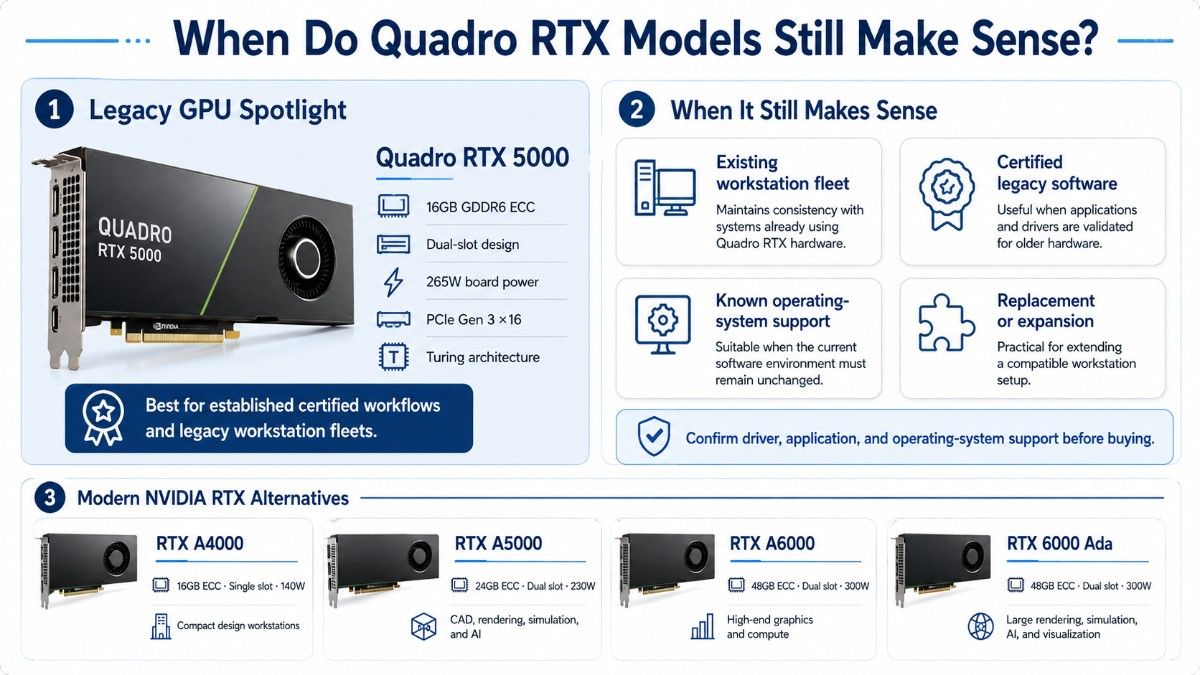
The Quadro RTX 5000 uses NVIDIA’s older Turing architecture. Its official specifications include 16GB of GDDR6 ECC memory, PCIe Gen 3 x16, a dual-slot design, and 265W total board power.
Quadro RTX models can still fit established workflows. Confirm driver, application, and operating system support before extending an older fleet.
| GPU | GPU memory | Form factor and power | Strong workload fit |
| RTX 6000 Ada | 48GB GDDR6 ECC | Dual slot, 300W | Large rendering, simulation, AI, and visualization |
| RTX A6000 | 48GB GDDR6 ECC | Dual slot, 300W | High-end graphics, compute, and supported multi-GPU work |
| RTX A5000 | 24GB GDDR6 ECC | Dual slot, 230W | Balanced CAD, rendering, simulation, and AI development |
| RTX A4000 | 16GB GDDR6 ECC | Single slot, 140W | Mainstream design and compact workstations |
| Quadro RTX 5000 | 16GB GDDR6 ECC | Dual slot, 265W | Established certified workflows and legacy fleets |
How Much GPU Memory Does a Professional Workstation Need?
GPU memory holds geometry, textures, frame buffers, simulation data, render data, and AI model weights. When a project exceeds available memory, the application may slow down, reduce quality, or fail to load the complete workload.
Scene size, assembly complexity, resolution, model precision, and batch size all affect memory use.
| Workload | Practical planning range | Why capacity matters |
| Mainstream 2D and 3D CAD | 8GB–16GB | Supports common assemblies, viewports, and displays |
| Complex CAD and visualization | 16GB–24GB | Holds larger assemblies, textures, and real-time data |
| High-end rendering and simulation | 24GB–48GB | Supports detailed scenes, large meshes, and high-resolution output |
| Local AI development | 16GB–48GB or more | Model size, precision, batch size, and context drive use |
Treat these as planning ranges rather than fixed software minimums. Review the application vendor’s requirements and test representative projects before standardizing a workstation fleet.
How Should CPU and System Memory Be Balanced?
The CPU manages application logic, geometry preparation, code compilation, simulation stages, and storage tasks. Some CAD tools favor high single-core speed, while rendering and simulation may benefit from more cores.
System memory holds active projects, caches, datasets, and other applications. GPU memory does not replace system RAM because the CPU and operating system still need their own workspace.
A balanced memory plan should:
- Meet the application vendor’s recommended capacity.
- Leave headroom for larger projects and multitasking.
- Populate supported memory channels evenly.
- Preserve open slots when future expansion matters.
- Use ECC memory when stability is a priority.
Many professional systems start with 64GB, while large assemblies, simulations, and AI datasets may justify 128GB or more. The correct amount depends on the software and normal project size.
What SSD Setup Works Best for Professional Workstations?
Fast SSD storage improves project loading, texture access, caching, compilation, and local dataset work. NVMe SSDs usually fit active projects and scratch files because they offer high throughput and low delay.
Separating the operating system, active work, and scratch data can reduce contention.
| Storage role | Recommended approach | Main buying check |
| Operating system | Reliable NVMe SSD with recovery plan | Capacity, warranty, and service access |
| Active projects | High-performance NVMe SSD | Sustained speed, endurance, and free space |
| Scratch and cache | Separate high-endurance SSD | Write load, temperature, and remaining life |
| Archive and shared data | Larger SSD, NAS, or enterprise storage | Backup, access speed, and data protection |
Size storage for projects, temporary files, output, and growth. Keep important data on a protected backup platform rather than relying only on local workstation drives.
How Should a Workstation Be Built for CAD?
CAD users need smooth viewports, stable drivers, enough GPU memory for assemblies, and strong CPU performance. RTX A4000 and RTX A5000 can fit many teams, while 48GB cards may suit very large assemblies and advanced visualization.
Interactive modeling may favor CPU clock speed, while visualization and ray tracing place more pressure on the GPU.
A CAD-focused system should balance:
- High per-core CPU performance for interactive work.
- Enough GPU memory for the largest regular assembly.
- System RAM for models, references, and multitasking.
- Fast SSD storage for project files and caches.
- Display outputs for the required monitor setup.
NVIDIA RTX Enterprise Production Branch drivers target professional stability, regular updates, and application certification. Buyers should confirm the approved driver branch for each important application.
How Should a Workstation Be Built for Rendering?
Rendering performance depends on renderer support, scene complexity, GPU memory, resolution, and the number of jobs. Large textures, geometry, effects, and high-resolution frames can consume memory quickly.
RTX 6000 Ada suits large scenes and demanding production work. RTX A5000 offers a balanced option, while RTX A4000 may fit projects that remain within 16GB.
A separate scratch SSD can keep media, caches, and temporary writes from competing with the operating system.
Multi-GPU rendering can improve speed in supported applications. Do not assume every renderer combines GPU memory automatically; confirm application behavior before buying a second card.
How Should a Workstation Be Built for Simulation?
Simulation workloads vary. Some solvers rely mainly on the CPU, while others use CUDA or GPU acceleration for selected stages.
Large meshes and result files require substantial RAM, storage, and sometimes GPU memory.
Balance CPU cores, memory bandwidth, RAM, GPU support, and SSD write speed. Long jobs also require stable cooling and a power supply that can sustain full load.
Application support should guide the build. Check whether the solver uses the GPU for computation, visualization, or both before spending more on GPU capacity.
How Should a Workstation Be Built for AI Development?
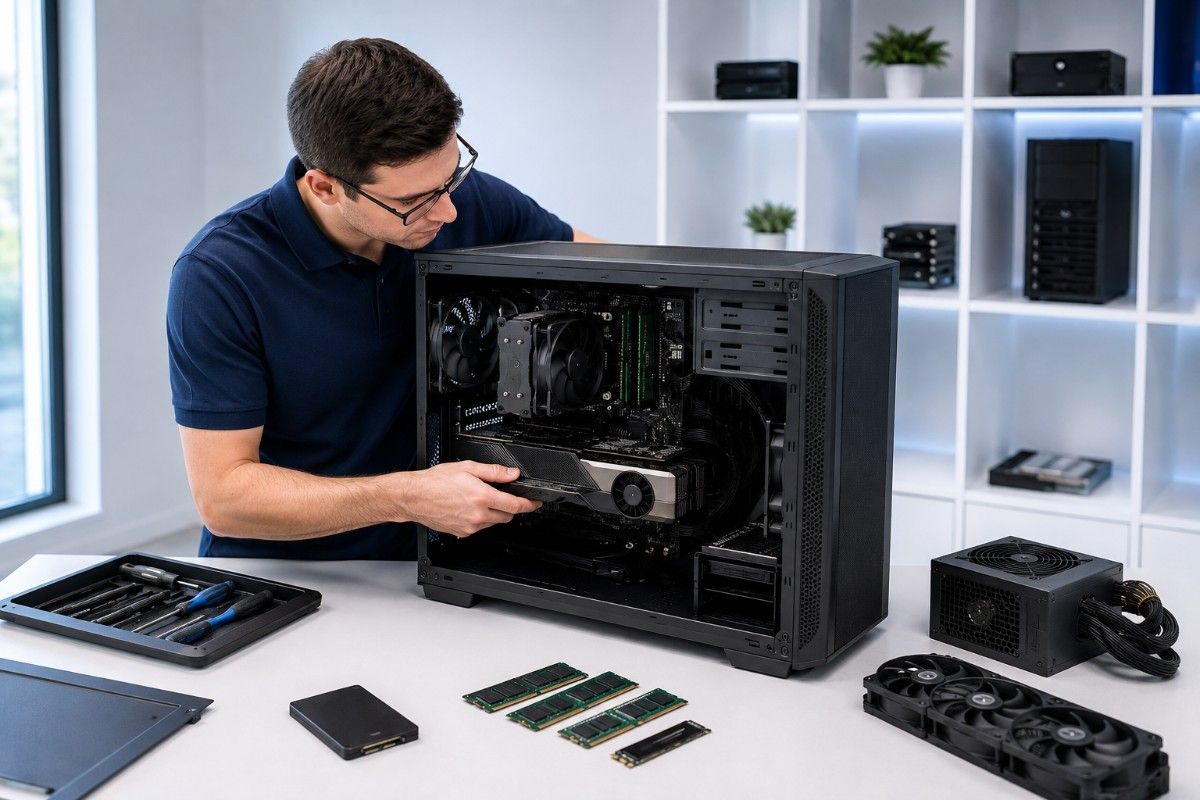
An AI workstation supports local prototyping, inference, fine-tuning, computer vision, and testing without sending every job to a remote platform.
GPU memory often becomes the first limit. Model weights, activations, optimizer state, precision, batch size, and context length affect capacity.
A practical AI development build should include:
- Enough GPU memory for the target model.
- High system RAM for preparation and offloading.
- Fast NVMe storage for datasets and checkpoints.
- Enough CPU cores for preprocessing and compilation.
- Networking for shared storage and server access.
RTX 6000 Ada and RTX A6000 fit memory-heavy local work because each provides 48GB. RTX A5000 can support moderate models, while RTX A4000 may fit smaller inference and computer vision tasks.
A local workstation provides direct control and quick access for development. Larger training jobs may still require a GPU server, cluster, or cloud environment.
What Power Supply and Cooling Does a Workstation Require?
The power supply must support every component at full load, with headroom for peaks and future upgrades.
GPU power ranges from 140W for RTX A4000 to 300W for RTX 6000 Ada and RTX A6000. These differences affect PSU capacity, connector type, heat, noise, and chassis choice.
Before ordering, confirm:
- The PSU has enough output and the correct connector.
- The chassis supports the card’s length and slot width.
- Intake and exhaust paths remain clear.
- Other cards do not block GPU airflow.
- The room can handle heat and noise during long jobs.
The principles in this cooling strategy guide also apply at workstation scale. Power becomes heat, and the system must remove it without throttling.
Should You Choose a Workstation or a GPU Server?
A workstation places professional compute beside the user. It suits interactive CAD, rendering, visualization, local simulation, and AI development where direct display access matters.
A GPU server suits shared use, remote jobs, higher GPU density, centralized storage, and continuous services. It also requires more planning for networking, administration, rack power, and cooling.
| Decision point | Workstation | GPU server |
| Main users | One professional or a small local team | Several users, services, or scheduled jobs |
| Best workload style | Interactive design, local rendering, and development | Shared AI, remote compute, and batch work |
| GPU density | Usually one or a few active-cooled cards | Can support dense PCIe or SXM platforms |
| Infrastructure | Office power, local storage, and workstation cooling | Rack power, high-speed networking, and data center cooling |
| Main advantage | Direct control and low interaction delay | Central scale, sharing, and remote management |
The GPU server build guide provides more context for shared AI and HPC infrastructure.
Choose a workstation for local monitors, direct application control, and fast interactive response. Choose a server when several people must share compute or when jobs need more GPUs and centralized management.
What Should You Buy With an NVIDIA Workstation GPU?
Every component must match the workload and GPU.
The buying list often includes:
- A motherboard and chassis that fit the GPU.
- Enough DDR4 or DDR5 memory for the workload.
- NVMe SSDs for projects, datasets, and scratch.
- A qualified PSU with the correct connector.
- Displays, adapters, network parts, and backup storage.
Also confirm the operating system, professional driver branch, application certification, and any required CUDA or enterprise software version.
Small compatibility details can delay deployment. Check display connectors, power cables, motherboard slots, drive bays, and network ports before placing the order.
Should Buyers Choose New or Refurbished Workstation Hardware?
New hardware fits current support needs, standard fleets, and longer lifecycle plans.
Refurbished RTX A-series and Quadro RTX cards may offer strong value for known professional workloads. A documented refurbished testing process helps buyers assess condition, firmware, stability, and warranty.
Check the part number, condition, accessories, driver support, return terms, and test results.
Refurbished hardware often makes sense when the workload is stable and the organization already supports the platform. Newer hardware may provide better value when future software support, energy use, or project growth matters more.
What Should Buyers Check Before Ordering?
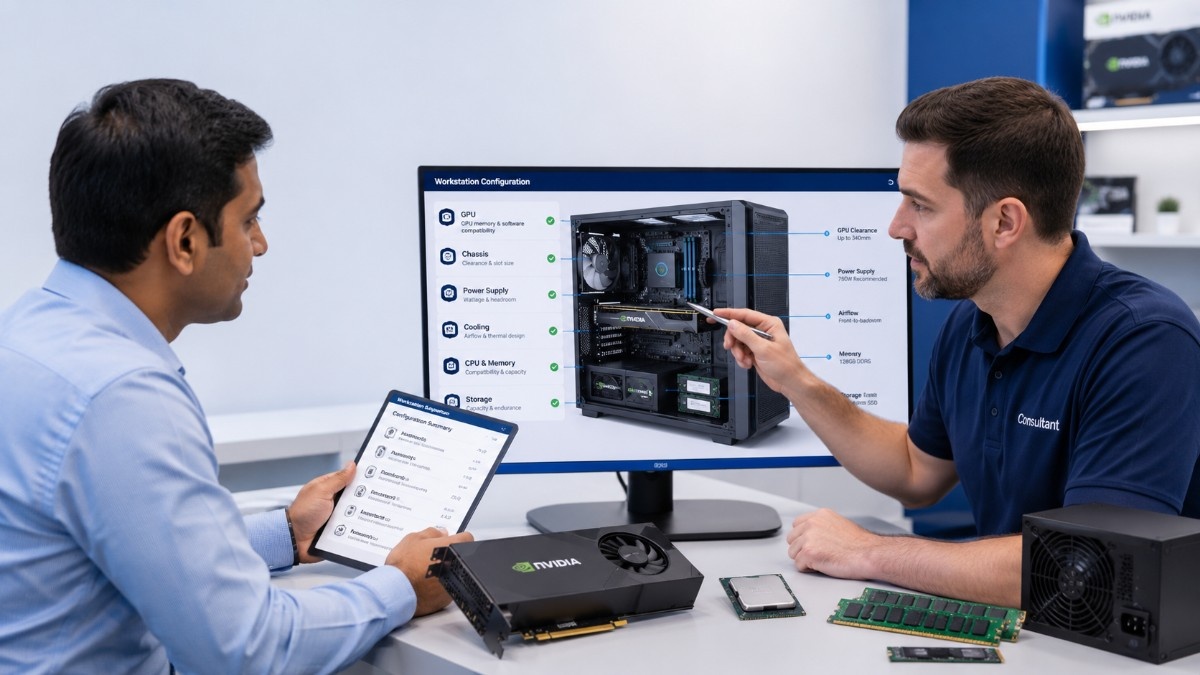
A quote-ready request should describe the applications, project sizes, current performance problems, and expected growth. This helps match the GPU with the correct memory, SSDs, CPU, power supply, and chassis.
Use this buying checklist:
- List the main CAD, rendering, simulation, or AI applications.
- Estimate project size, GPU memory, and system RAM needs.
- State display count, resolution, storage, and network needs.
- Confirm chassis size, PSU capacity, connectors, and cooling.
- Note whether new, refurbished, or mixed hardware is acceptable.
Catalyst Data Solutions can help source NVIDIA professional GPUs and workstation components based on workload, compatibility, budget, and availability. Teams can request a workstation quote for individual parts or a complete configuration.
Available GPUs and supporting hardware can also be reviewed through the Catalyst hardware store.
Frequently Asked Questions About NVIDIA Workstation Builds
What is the best NVIDIA GPU for a professional workstation?
The best GPU depends on the application and project size. RTX 6000 Ada suits demanding high-memory work, while RTX A5000 or RTX A4000 may offer better value for mainstream projects.
How much GPU memory does CAD need?
Many CAD workflows fit within 8GB to 16GB. Large assemblies, advanced visualization, high-resolution displays, or several active applications may need 24GB or 48GB.
Is RTX 6000 Ada better than RTX A6000?
RTX 6000 Ada uses a newer architecture. RTX A6000 remains useful when buyers need 48GB, NVLink support, or value from an existing Ampere platform.
Is RTX A4000 enough for rendering?
It can support many projects that fit within 16GB. Larger scenes, detailed textures, or heavy ray tracing may benefit from RTX A5000, RTX A6000, or RTX 6000 Ada.
How much system RAM should a workstation have?
The amount depends on project size and software. Many professional systems start with 64GB, while large CAD, simulation, rendering, and AI workloads may need 128GB or more.
Can a workstation support AI development?
Yes. It can support prototyping, inference, fine-tuning, and testing when GPU memory, system RAM, SSD speed, and software support match the model.
When should a business choose a GPU server?
Choose a server when several users need shared access, jobs need greater GPU density, or the organization requires centralized storage, remote services, and managed infrastructure.